
1. Log in at https://www.electronicsu.org and click My Electronics U to access the dashboard.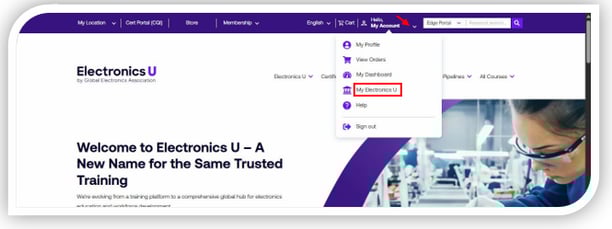
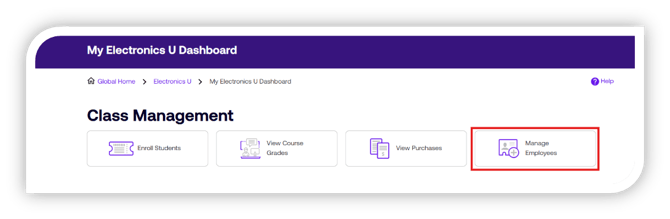
2. Under the Class Management header, click Manage Employees.
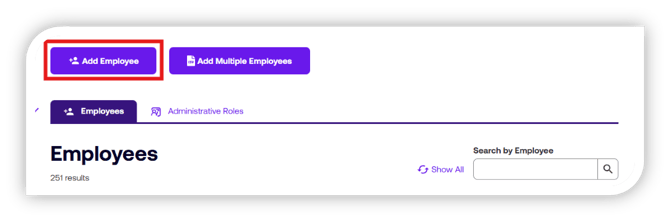
3. Click the Add Employee button.
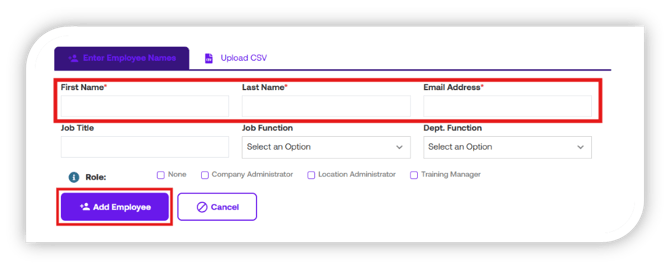
4. In the modal that pops up, enter the user's first name, last name, and email address. Then click Add Employee.
5. To add multiple employees at once, click Add Multiple Employees instead of Add Employee.
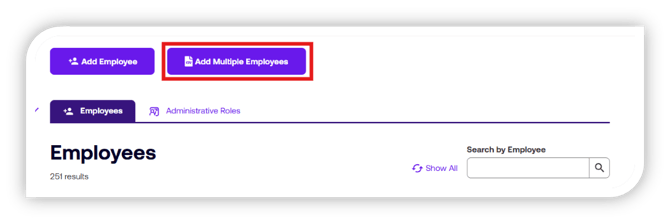
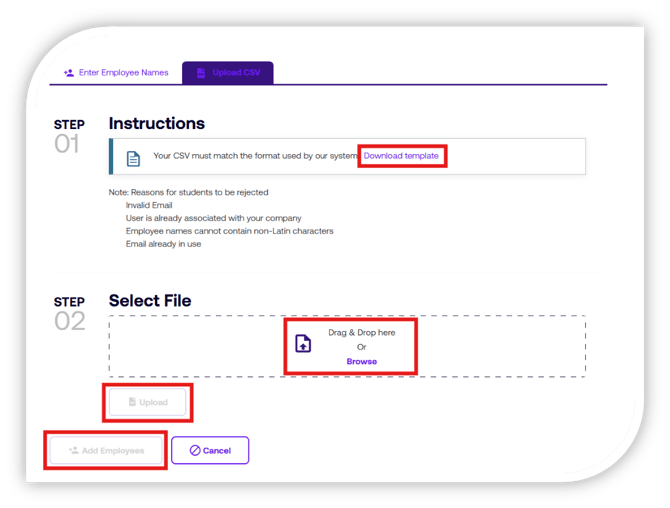
6. On the modal that appears, you can bulk import by uploading a CSV. There is a Template CSV for you to download, which outlines the required order of information within the spreadsheet for upload. Once the CSV has been created, drop the list into the designated box and click Upload Now. Once uploaded and there are no errors (note: any errors will be listed here for you to correct), click 'Add Employees'.
If you need additional help, please contact us at support@electronicsu.org.