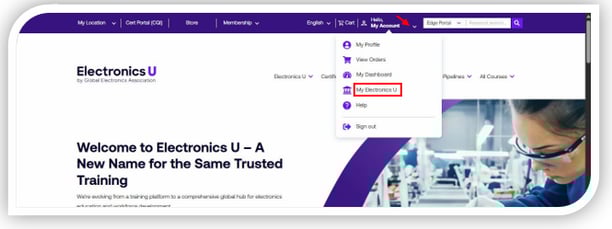
- Log in at https://education.ipc.org/ and click My Electronics U to access the dashboard.
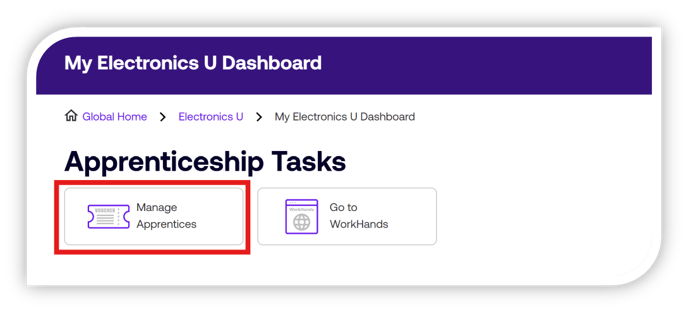
- Click the Manage Apprentices button under the Apprenticeship Tasks header on the dashboard.
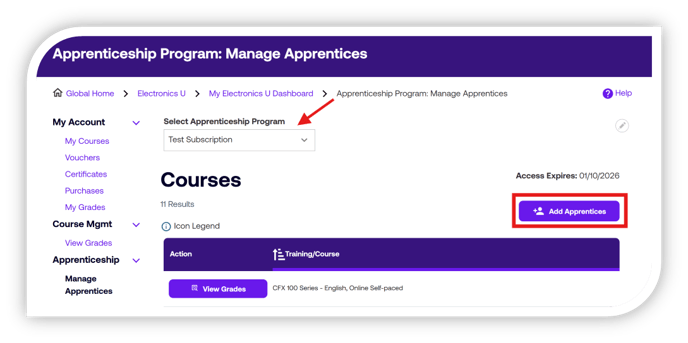
- If you manage more than one, you may choose the appropriate Apprenticeship in the dropdown, then locate the Add Apprentices button on the top right of the course list, click it.
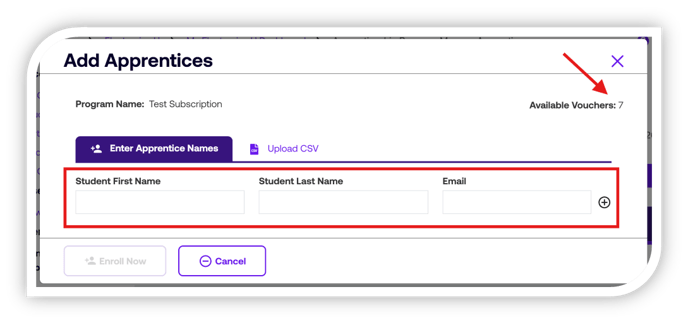
- A modal will appear asking for first name, last name, and email address.
- Please note: Anyone you add as an Apprentice must already be in your Employee Directory. If they are not, you will need to add them first.
- At the top right, you will see the number of available slots for the Apprenticeship. This shows how many can be added to the program and will change as each student is entered.
- Enter the name and email address of each student, then click 'Enroll'.
- These steps will add the apprentices to the Apprenticeship and automatically enroll them in all Apprenticeship courses.
If you need additional help, please contact us at support@electronicsu.org.
English