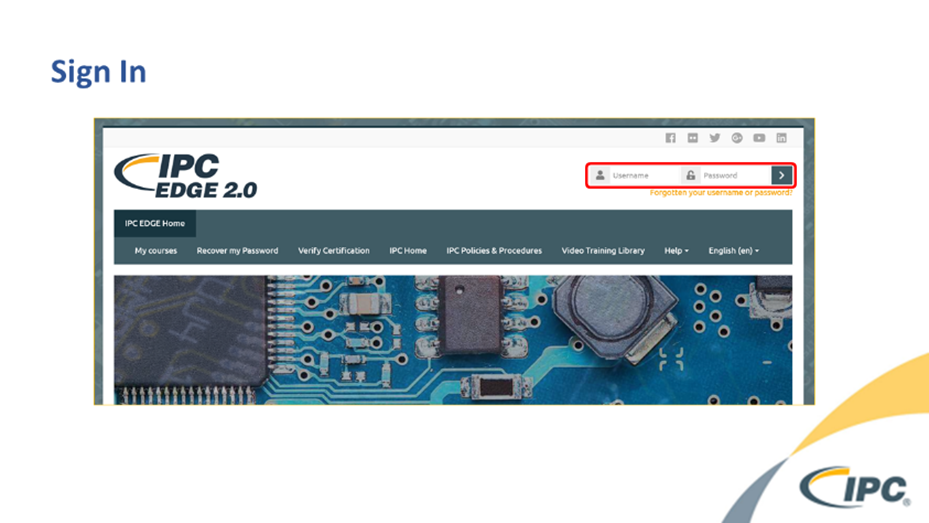
2. Scroll down to your "Course Overview" and select course
3. Note -
This step is Course selection, not Class selection. You will select your class later during step 6. 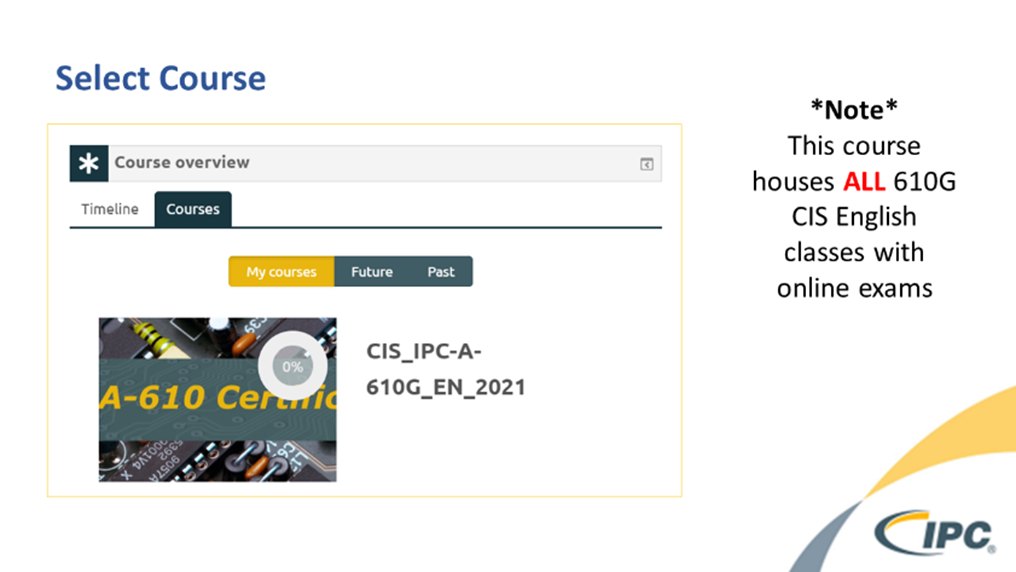
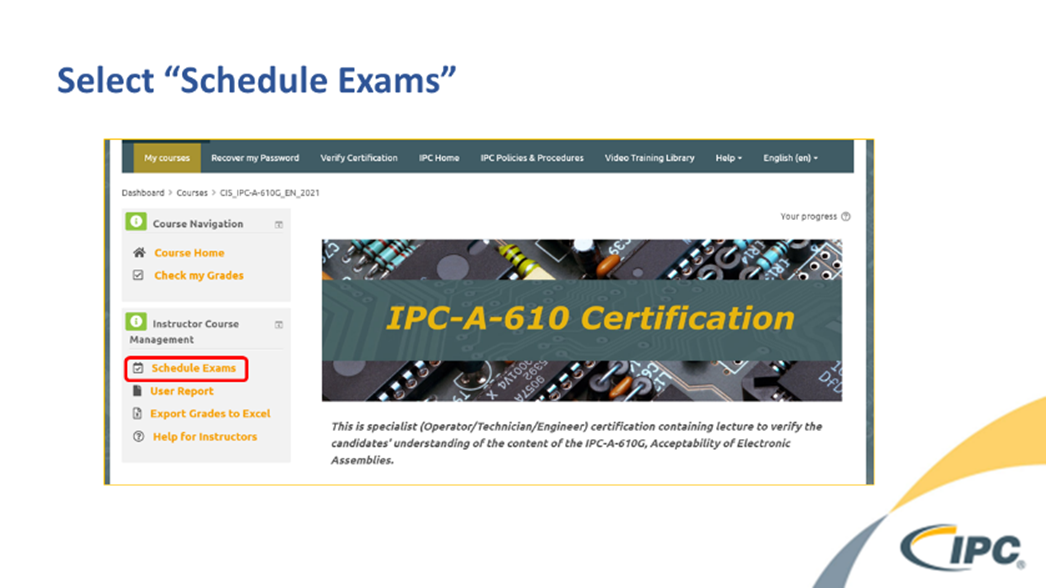
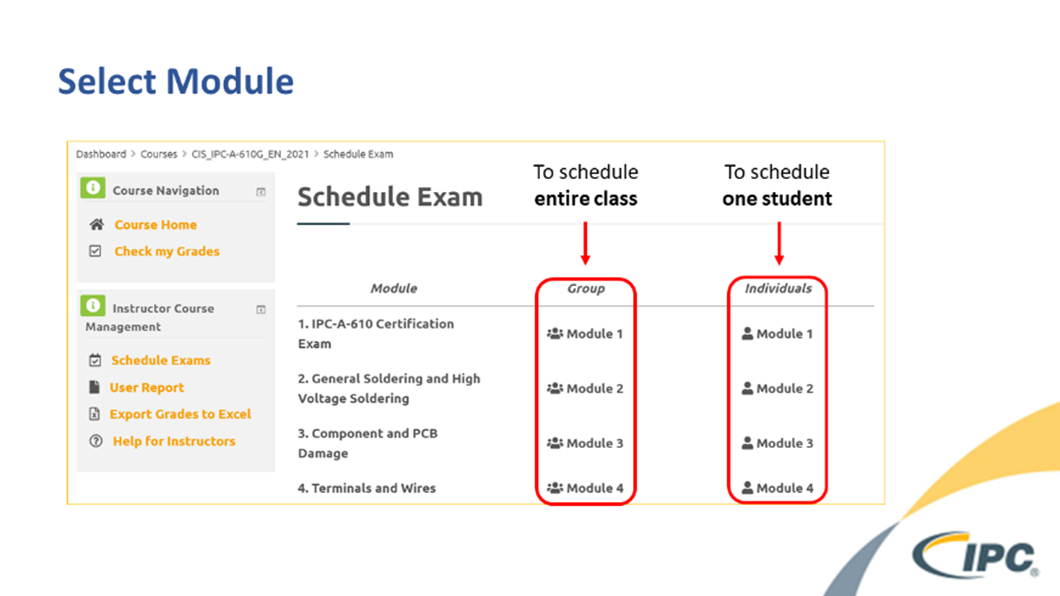
5. Select the desired module from the appropriate column
6. Group column – Schedules entire Class
7. Individual column – Schedules one Student at a time
8. To schedule a new exam time, select "Schedule Exam for User or Group"
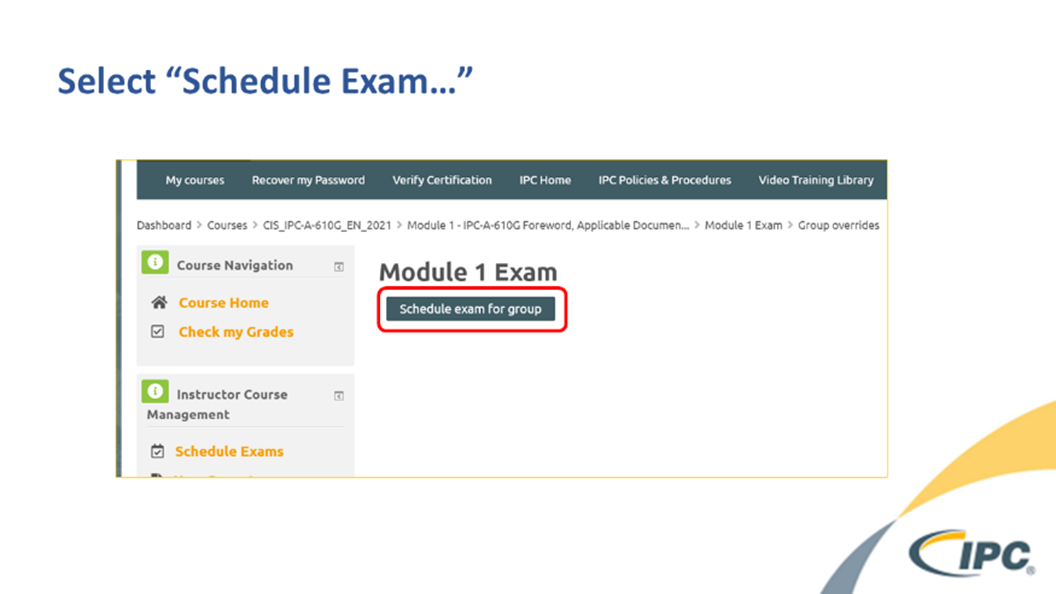
9. Select the desired class group
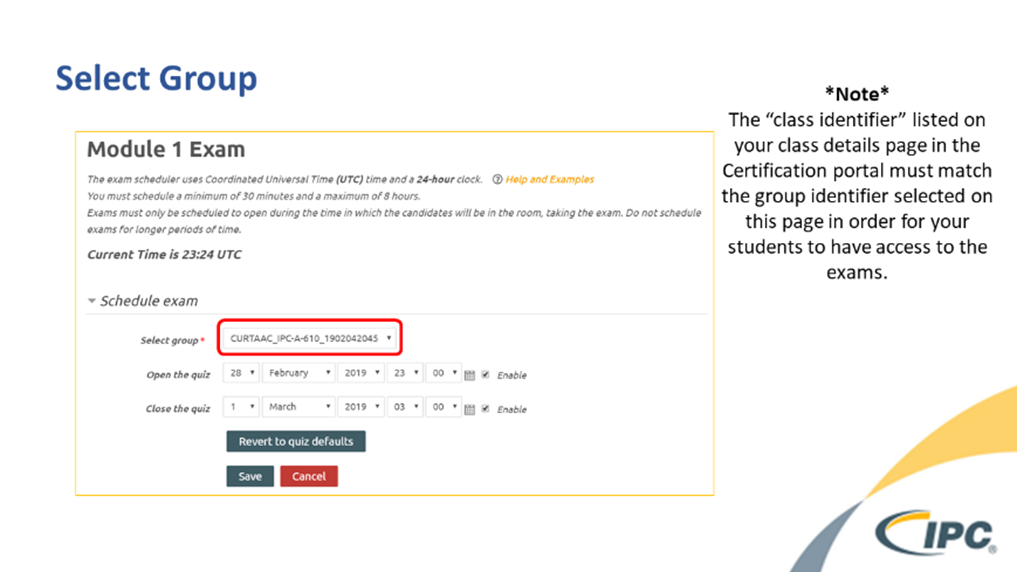
10. Set Time
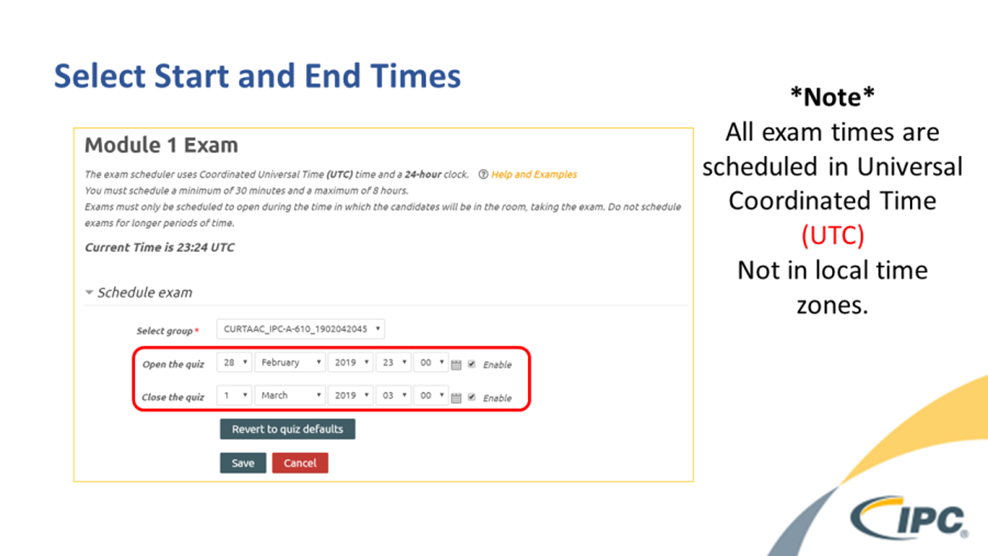
For further assistance converting time to UTC from local time zones, please select "Help and examples" on this page or enter "<local time zone> to UTC" in your favorite search engine.
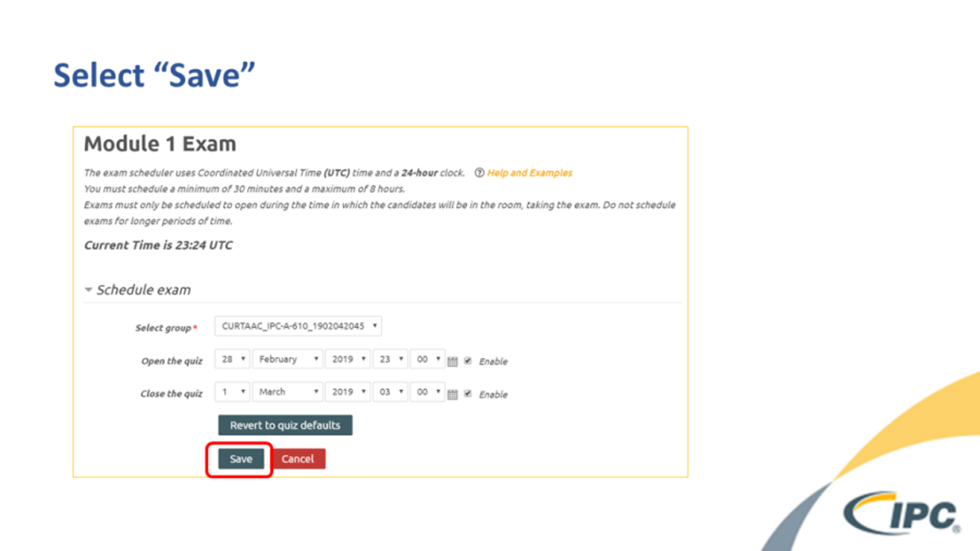
Your exams are now scheduled
How long do I schedule exams?
We ask that you set the start and end dates for your class to the dates you will actually be in class, but within 90 days if you are adding modules.
Please keep in mind that the start and end dates set when creating your class at Certification.ipcedge.org only restrict when the instructor can enroll or remove a student from the class. The student can access exams as scheduled at my.ipcedge.org even after the end date set at Certification.ipcedge.org has passed. However, do not schedule before the start date, or the grades will not transfer.