1. Log in to the Edge 2.0 platform at https://my.ipcedge.org/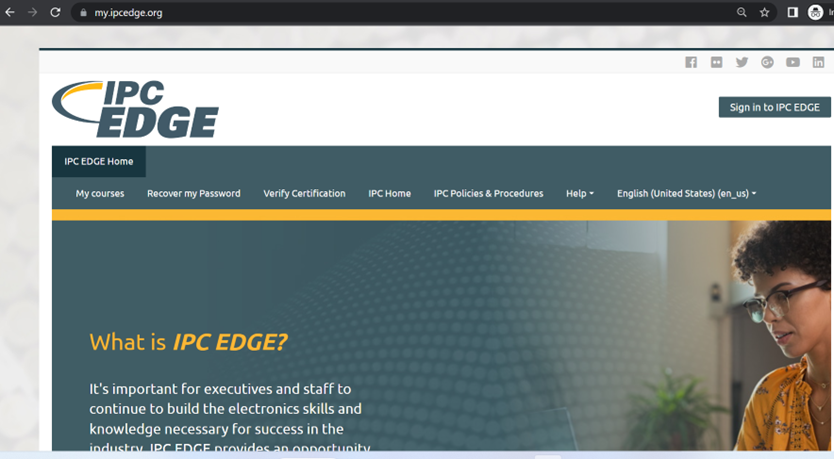
2. Select the applicable course from your dashboard. 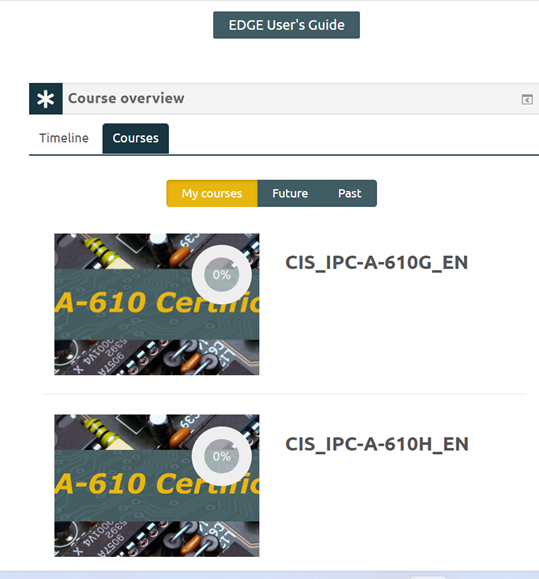
3. Select the desired module under the “Grade Workmanship” or "Grade Exams" section of the Instructor Course Management Menu.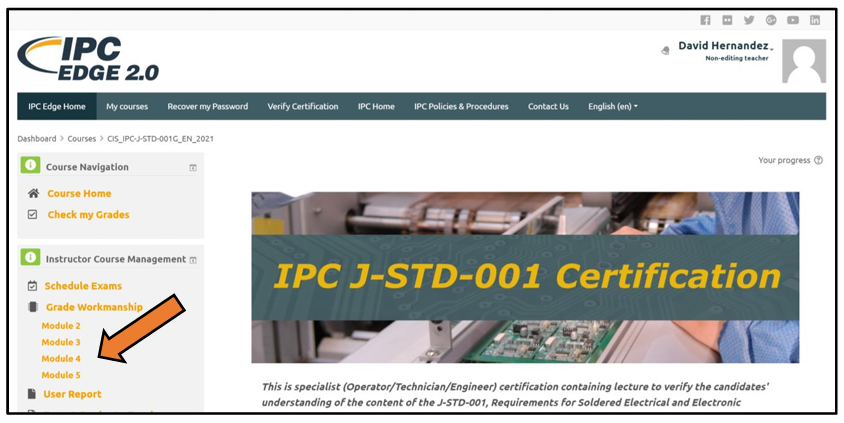
4. The next screen contains a list of students and their email addresses. Next to each student is a grade drop-down. The drop-down box defaults to “No Grade” and can be changed to “Competent” for students who have successfully completed the workmanship assessment and “Not Competent” for students who failed the workmanship assessment. For paper-based exams, enter the numerical grade. When done entering the grade, select the “Save All Quick Grading Changes” button to save the grades. 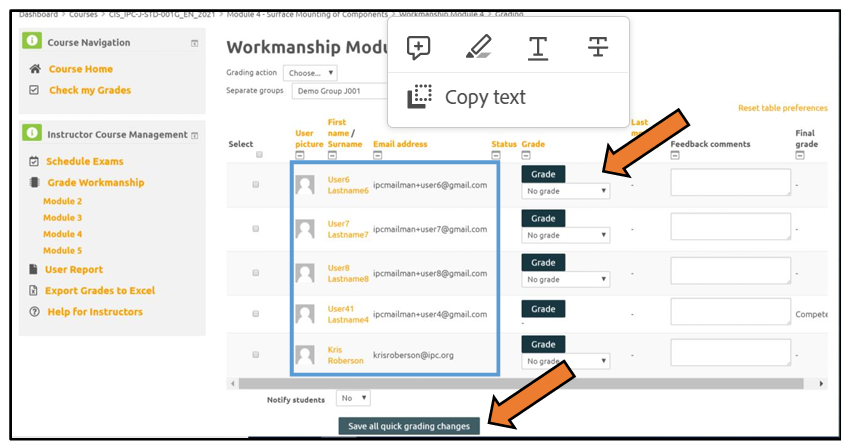
5. The gradebook also contains an optional Feedback field. If you would like to leave comments for your students about their workmanship assessment or exam, please feel free to add those comments in the Feedback field and students will have access to these comments when they log in to their account. 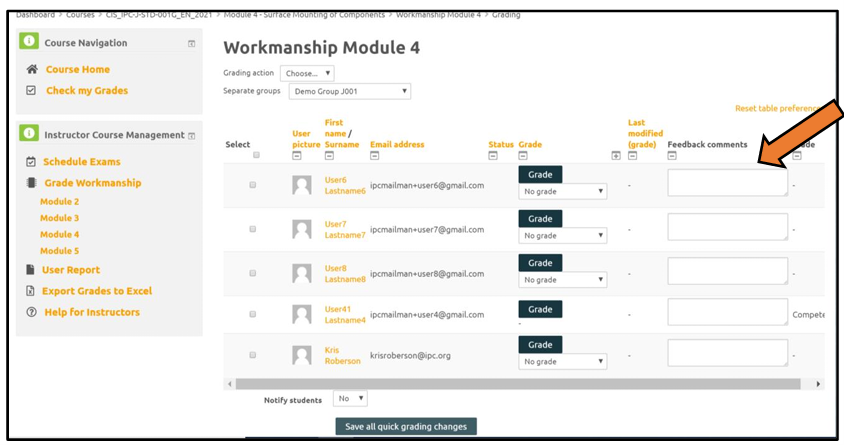
Note:
If there are previous scores showing with an older date, please follow the steps below.
- select the module
- click Grade
- clear the old grade (make the cell blank)
- Save.
- Then enter the proper grade and Save again. That will update both the grade and date.